
Getting Started with Urai Voice
To use Urai Voice for handling calls and sending SMS via Twilio, you need to configure your environment secrets first. This ensures that your scripts have the necessary permissions to interact with the Twilio API.
1. Obtain Twilio Credentials
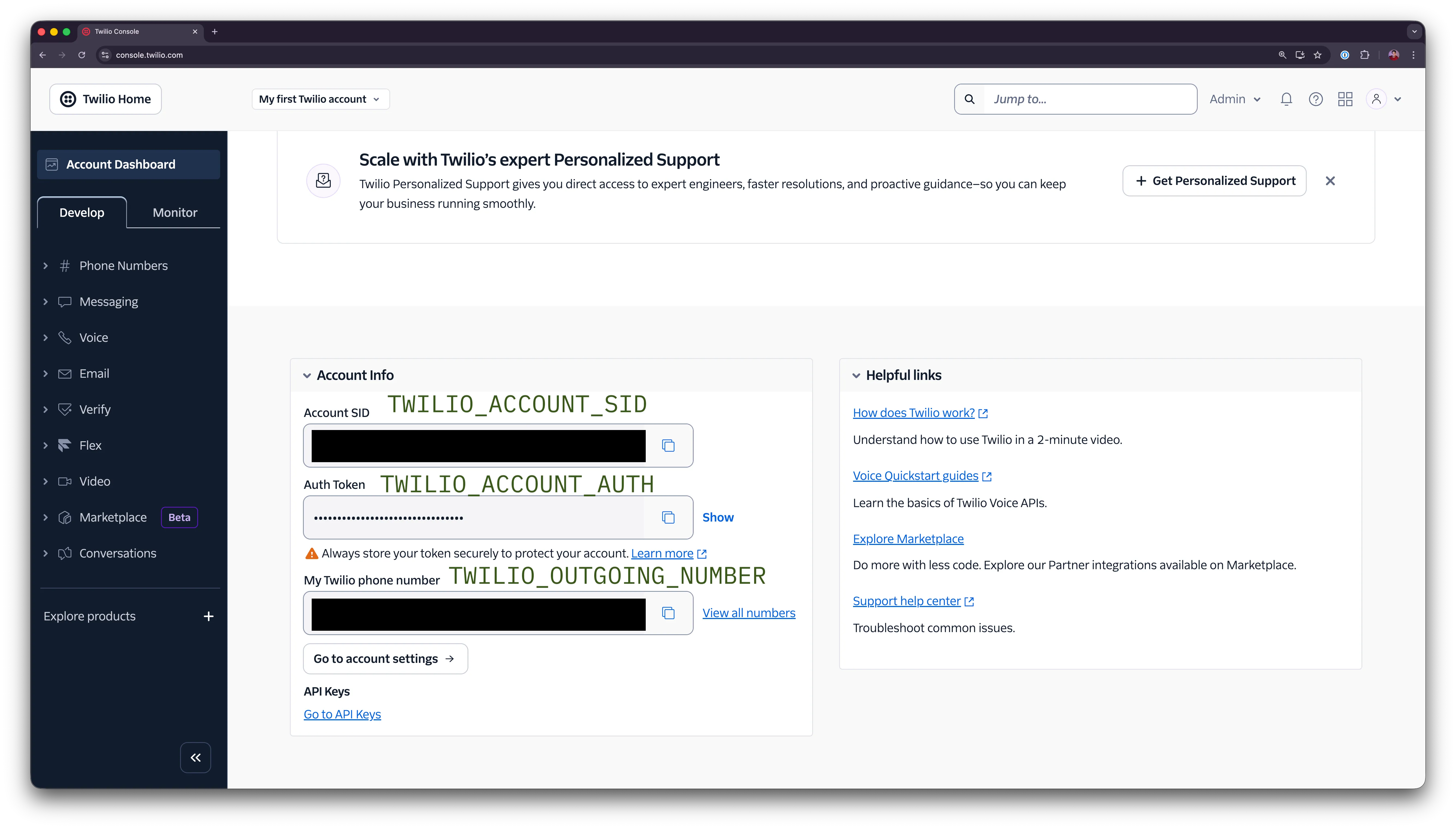
Section titled “1. Obtain Twilio Credentials”Login to your Twilio Console and locate your Account Info. You will need the following three values:
- Account SID
- Auth Token
- Twilio Phone Number
2. Configure Secrets in Urai Studio
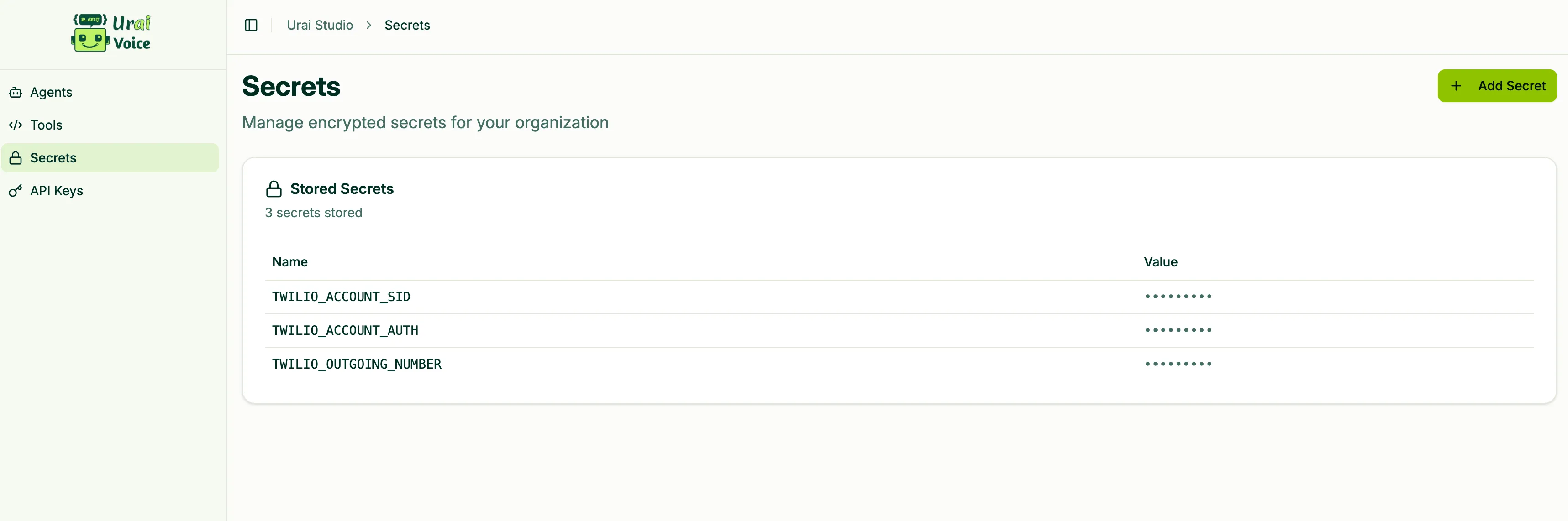
Section titled “2. Configure Secrets in Urai Studio”Navigate to the Secrets section in your Urai Voice dashboard. You need to add three secrets corresponding to your Twilio credentials:
| Secret Name | Description |
|---|---|
TWILIO_ACCOUNT_SID | Your Twilio Account SID |
TWILIO_ACCOUNT_AUTH | Your Twilio Auth Token |
TWILIO_OUTGOING_NUMBER | Your Twilio Phone Number (E.164 format, e.g., +1234567890) |
3. Verify Setup
Section titled “3. Verify Setup”Once these secrets are stored, your Twilio call handling and SMS scripts will be able to authenticate automatically. Ensure that you have sufficient balance in your twilio account to make the call and send SMS.
4. Create API Keys for CLI
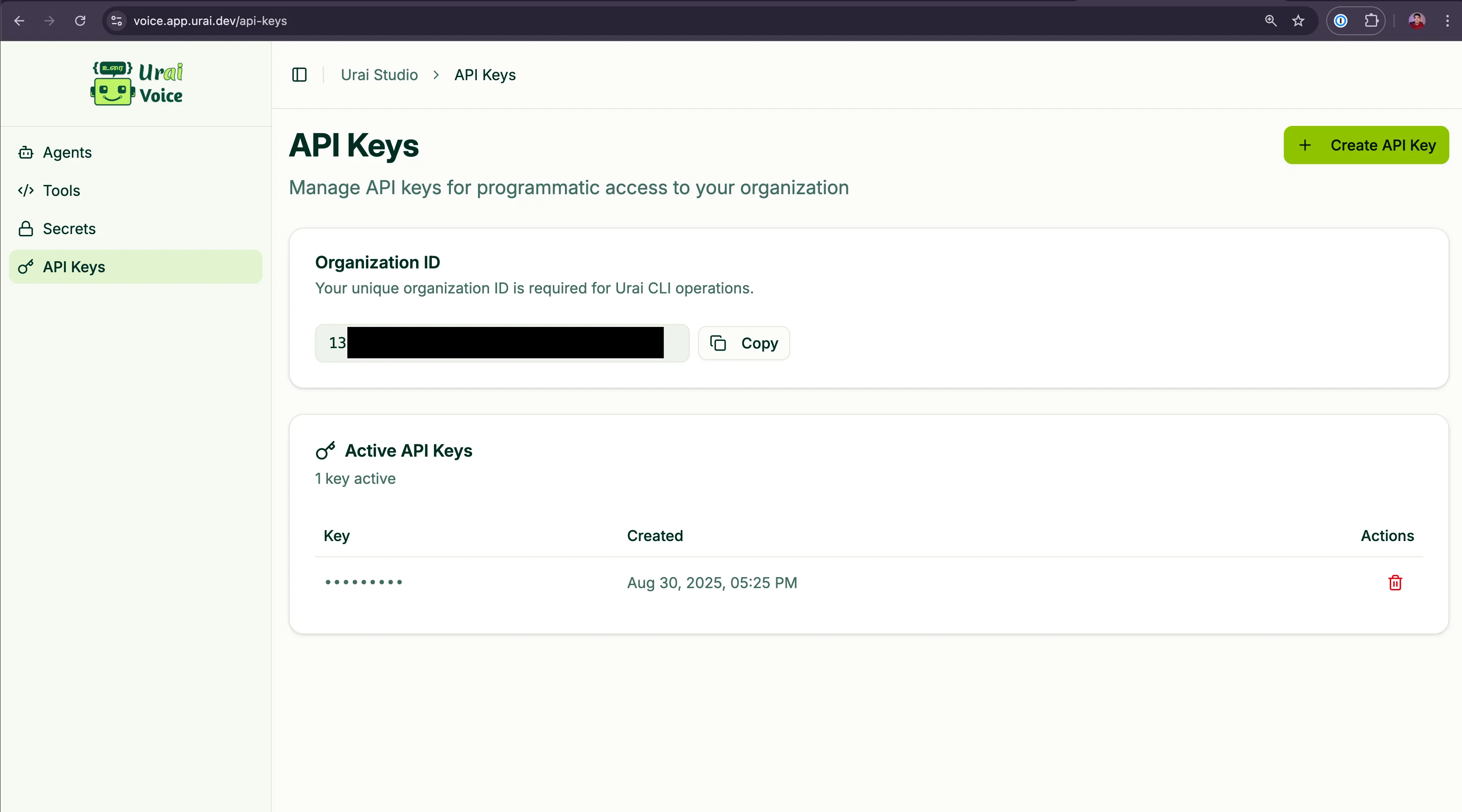
Section titled “4. Create API Keys for CLI”To interact with Urai Voice via the command line, you need to generate an API Key.
- Navigate to the API Keys section in the Urai Voice sidebar.
- Click on Create API Key.
- Copy and save your key securely, as it will not be shown again.
5. Download Urai CLI
Section titled “5. Download Urai CLI”You can download and install the Urai CLI from our GitHub repository:
Use your generated API Key to authenticate the CLI and start managing your voice agents and scripts directly from your terminal.