Obtaining API Keys
Urai Chat uses a “Bring Your Own Key” (BYOK) model. This means you need to provide your own API keys for the AI providers you want to use. This guide will help you find and generate these keys and configure them in your workspace.
Configuring Your Credentials
Section titled “Configuring Your Credentials”Once you have your API keys, you need to add them to your Urai Chat workspace.
1. Open the Credentials section
Section titled “1. Open the Credentials section”Go to the Credentials tab in the sidebar and click on the Add Credential button.
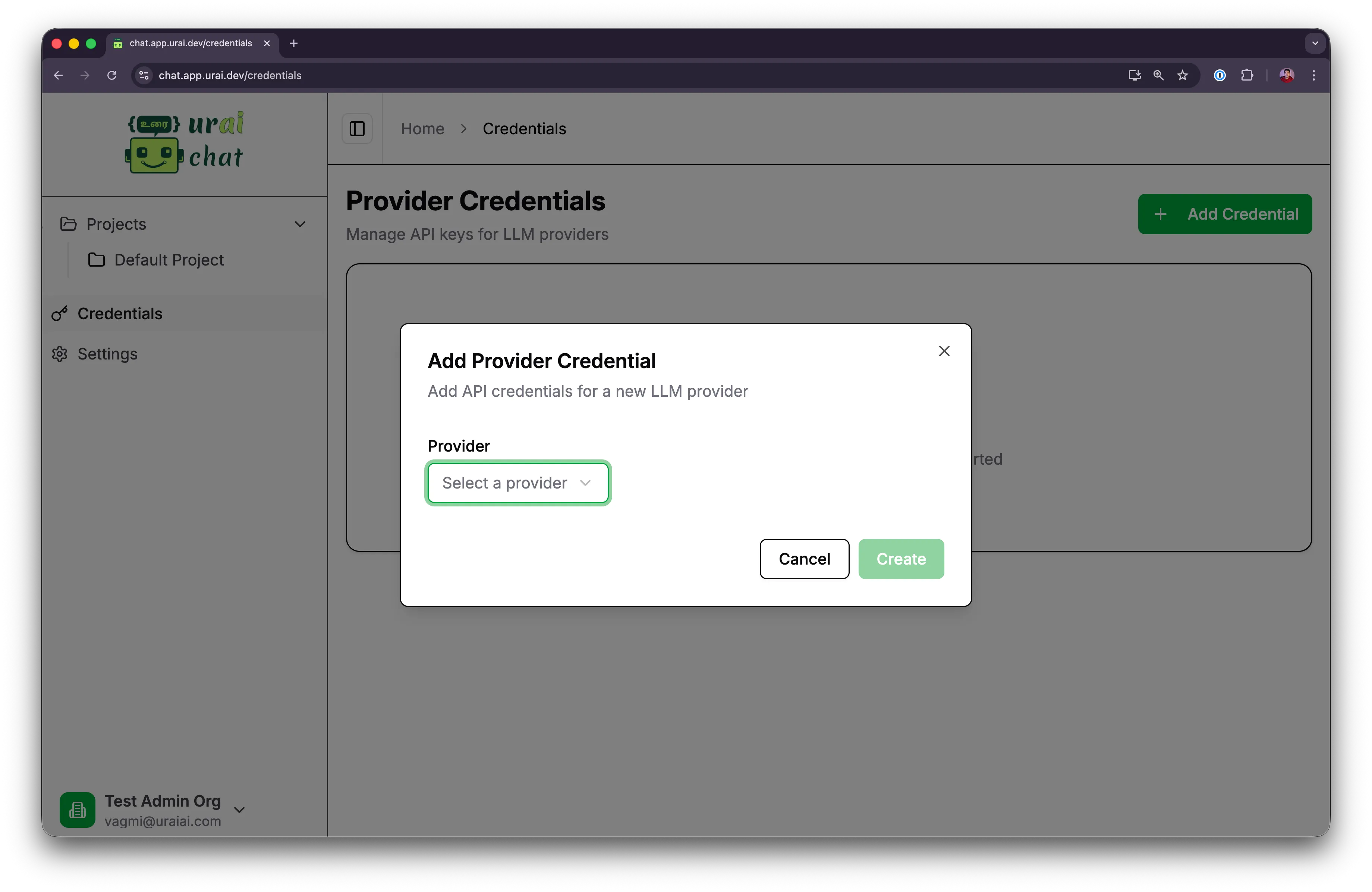
2. Choose your provider
Section titled “2. Choose your provider”Select the provider you want to configure from the dropdown menu. We currently support Anthropic, Gemini, Vertex AI, OpenAI, and OpenRouter.
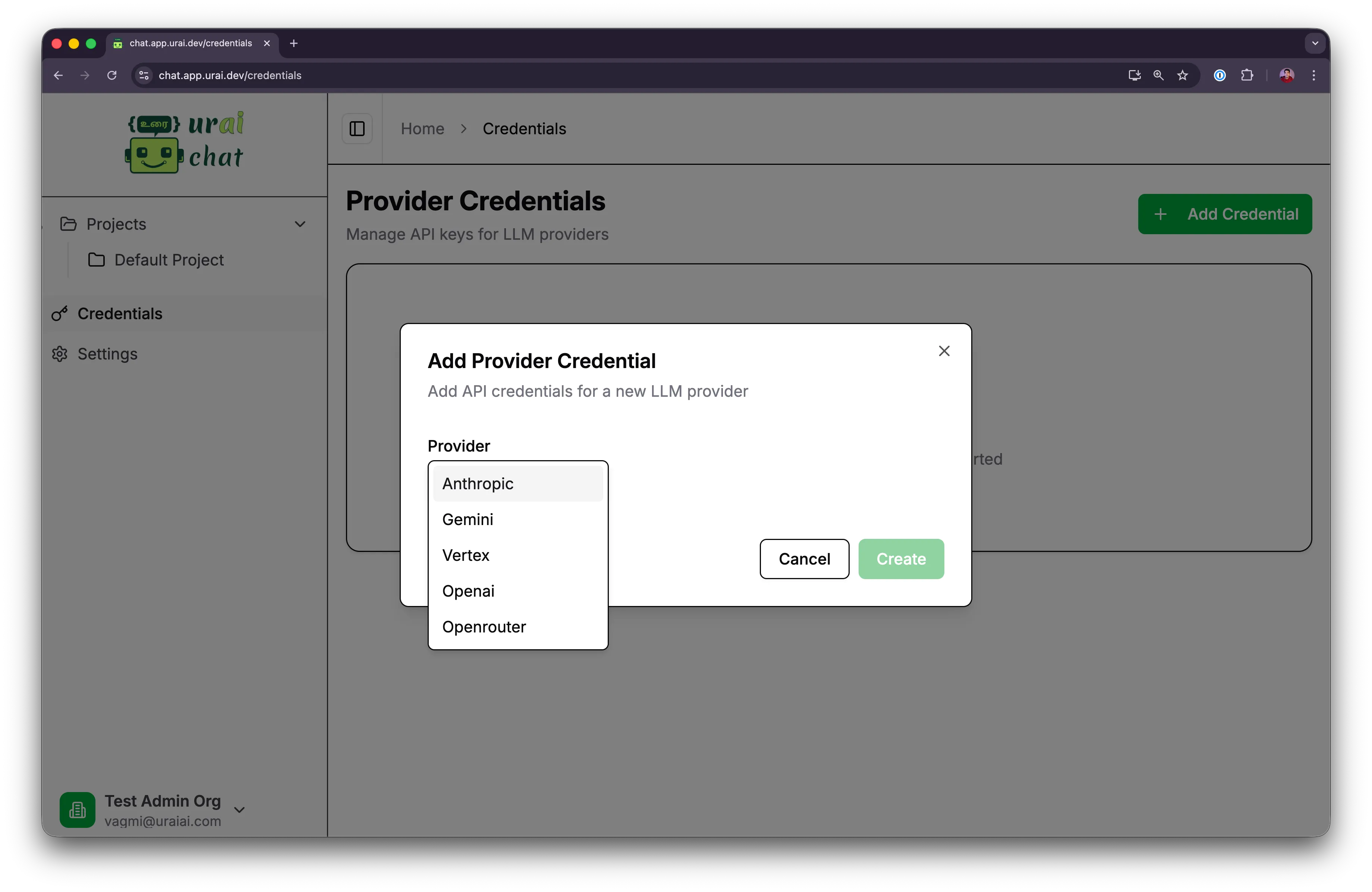
3. Enter your API Key
Section titled “3. Enter your API Key”Enter your API key (and any other required fields for that provider) and click Create.
4. Set the Summarizer Model
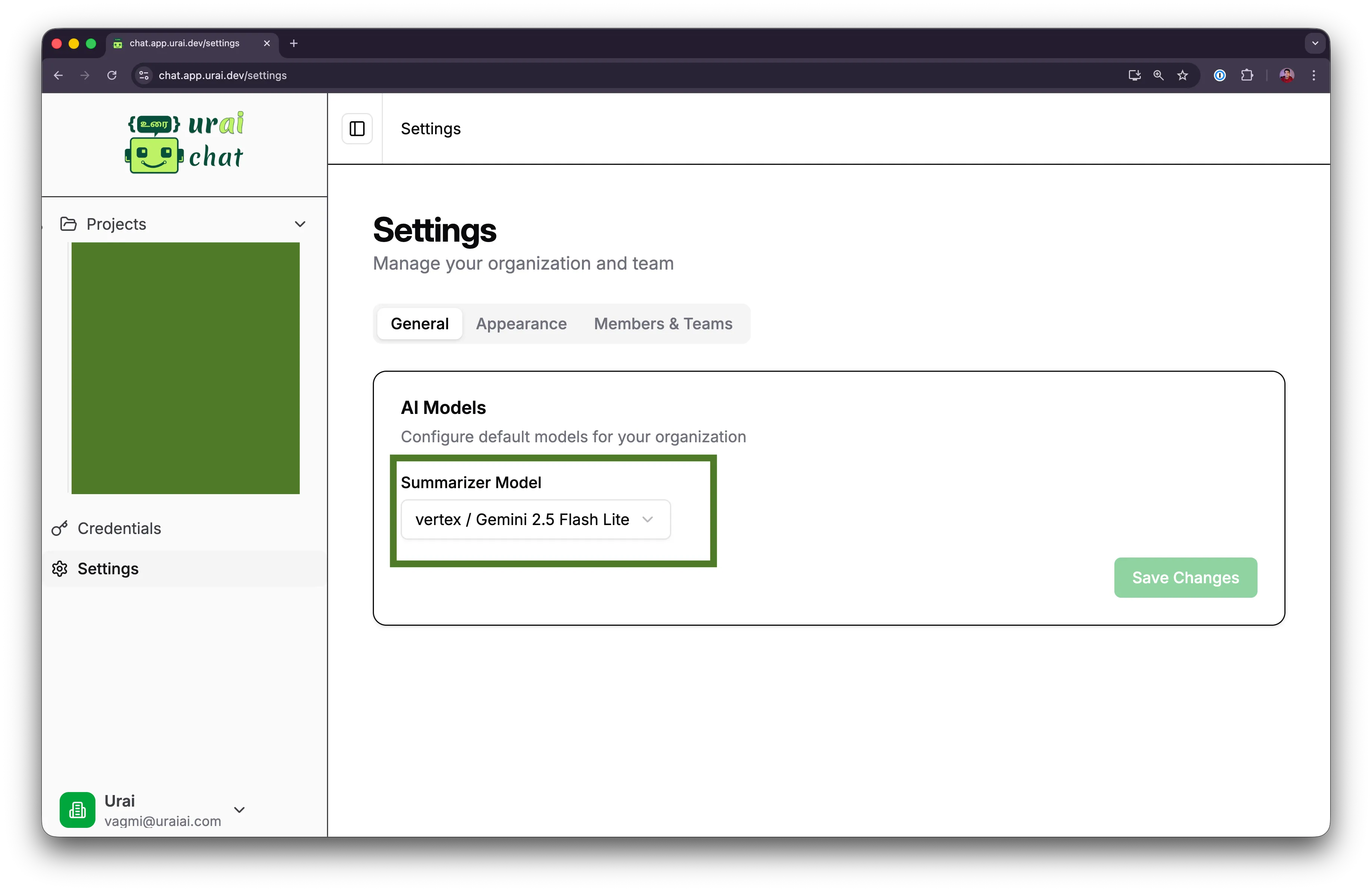
Section titled “4. Set the Summarizer Model”After adding your credentials, you must select a default Summarizer Model. This model is used by Urai Chat to generate concise summaries and titles for the conversation.
- Navigate to Settings in the sidebar.
- Under the General tab, find the AI Models section.
- Choose a model from the Summarizer Model dropdown (e.g., Gemini 2.5 Flash Lite).
- Click Save Changes.
How to get your API keys
Section titled “How to get your API keys”Below are the steps for each provider.
OpenAI
Section titled “OpenAI”- Login to the OpenAI Platform.
- Navigate to the Dashboard and select API Keys from the sidebar (or click on your profile icon and find “View API keys”).
- Click + Create new secret key.
- Give your key a name and click Create secret key.
- Copy and save your key immediately. You will not be able to see it again.
Google Gemini (AI Studio)
Section titled “Google Gemini (AI Studio)”Google AI Studio is the easiest way to get an API key for Gemini models.
- Go to Google AI Studio.
- In the left sidebar, click on Get API key.
- Click Create API key in new project or select an existing project.
- Copy the generated API key.
Anthropic (Claude)
Section titled “Anthropic (Claude)”- Login to the Anthropic Console.
- Navigate to Manage > API Keys.
- Click Create Key.
- Provide a name for the key and click Create Key.
- Copy and save your key securely.
OpenRouter
Section titled “OpenRouter”OpenRouter provides a unified interface for many different models.
- Login to OpenRouter.
- Navigate to the Dashboard and select Keys.
- Click Create.
- Provide a name and (optional) a credit limit.
- Copy your new API key.
Google Vertex AI (Google Cloud)
Section titled “Google Vertex AI (Google Cloud)”Vertex AI is Google’s enterprise AI platform. Authentication usually requires a Service Account.
- Go to the Google Cloud Console.
- Select or create a project.
- Enable Vertex AI API: Search for “Vertex AI API” in the search bar and click Enable.
- Navigate to IAM & Admin > Service Accounts.
- Click + Create Service Account.
- Follow the steps to name and create it. Grant it the role Vertex AI User.
- Once created, click on the service account’s email address.
- Go to the Keys tab and click Add Key > Create new key.
- Select JSON and click Create.
- A JSON file will be downloaded to your computer. Depending on the Urai Chat integration, you may need to provide the contents of this file or specific fields (Project ID, Client Email, Private Key).